Automated Accessibility Checkers
Tools
- A built-in accessibility checker
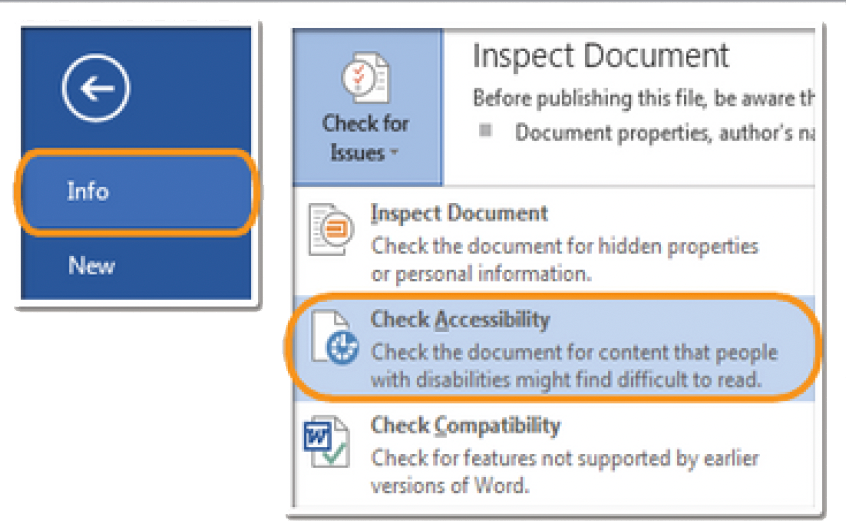
The accessibility checker provides you with a list of errors, warnings and Tips. When you click on an error, instructions on how to fix it appear below in 'Additional Information".
 How to Check
- Word and PowerPoint for PC:
- Go to the File Tab
- Select Info from the sidebar menu
- Click on the Check for Issues button
- Select Check Accessibility from the drop-down list
- Word and PowerPoint for Mac:
- Go to Review
- Click Check Accessibility
Tools
- A built-in accessibility checker
(View > Tools > Accessibility)
 How to Check
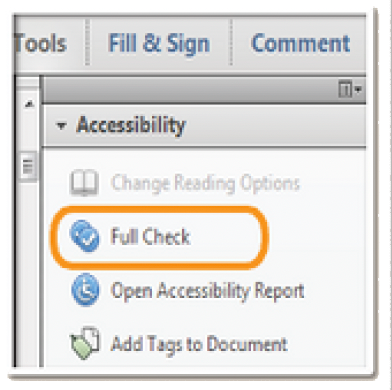
- Check the Tools tab to open the Accessibility Tool panel on the right. If you don't see it, click the View menu and select Tools > Accessibility.
- Select the Full Check button & the Accessibility Checker Options will open.
- On the Report Options section, check on Create Accessibility Report.
- On the Checking Options section: select Document under Category field and check all items.
- Click on the Start Checking button and the Accessibility Report will display.

Tools
- A browser-based checker, WebAim Wave accessibility add-on to the Chrome browser
How to Check
- Download and Install the Wave toolbar.
- In eLearn open any HTML page. Download the page to your computer.
- Open the downloaded page (in Chrome). Click the Wave button in the upper right corner. The Wave report will open on the left side of the page.
- Error icons in green, red, yellow and blue will appear on the page. If you click on an error icon, more information on the error will appear.
- Return to the original eLearn page and open the editor to repair the problems you found.
Contact Us
Related Links
- Accessibility at Southwest
- Web Accessibility Guidelines
- Accessible eLearn Pages
- PowerPoint & Google Slides
- Microsoft Word & Google Docs
- PDFs
- Video & Audio
- Complex Imagery
- Math & Science
- 3rd Party Tools
- Accessibility Checkers
- Accessibility Responsibility
- Software Purchases
- Accessibility Plan
- Accessibility Training Resources