How to Make Video & Audio Accessible
The buttons need to be properly labeled so a screen reader user can operate the player.
Best Practices
- Keyboard Navigation
It is important to accessibility that students can access and operate a media player with the keyboard alone (not using a mouse.)
How to Make it Accessible
- To test for keyboard accessibility, press the Tab key to navigate to the player, and use the Tab, Arrow keys, Enter, and Spacebar to interest with the media buttons.
If your player is not accessible, contact Media Services for assistance.
We recommend you first search for captioned media. If you have media that needs captions AND you have the copyright holder's permission contact Media Services for assistance.
Best Practices
- Search for captioned media
The Library has a wide selection of captioned media. Check the video databases or ask a Librarian for assistance.
How to Make it Accessible
How do i find human transcribed captioned videos on YouTube? (Search from YouTube site).
- Enter your search keyword in the YouTube Search field.
- Add a:, CC (a comma, CC).
- Press Enter or click the magnifying glass icon.
How do I find human transcribed captioned videos from Google?
- Fill out the Advanced Video Search fields.
- Choose the "Subtitles: Closed caption only" option.
- Press Enter or click the Advanced Video search button.
Make sure the YouTube Video you use does not have auto-generated captions.
How do I know?
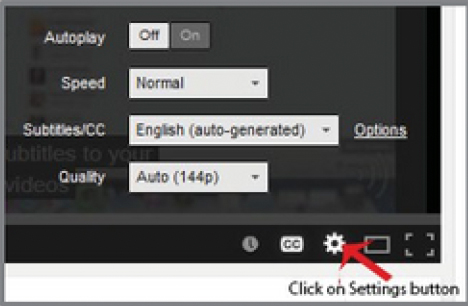 Click the Settings button and check the Subtitles field. Avoid auto-generated subtitles and the Translate feature which are not usually accurate.
Contact Us
Related Links
- Accessibility at Southwest
- Web Accessibility Guidelines
- Accessible eLearn Pages
- PowerPoint & Google Slides
- Microsoft Word & Google Docs
- PDFs
- Video & Audio
- Complex Imagery
- Math & Science
- 3rd Party Tools
- Accessibility Checkers
- Accessibility Responsibility
- Software Purchases
- Accessibility Plan
- Accessibility Training Resources