How to Make PowerPoints & Google Slides Accessible
Word Documents (2011, 2013, 2016)
- Properly format headings.
- Select the text that you want to make into a heading.
- Go to Home tab.
- Choose the appropriate heading level from the Styles group.
- Use Heading in the correct order.
- Heading 1 should only be used ONCE per page. Heading 2, 3, etc. can be used multiple times. DO NOT skip heading levels!
- Add alternative (Alt) text to images.
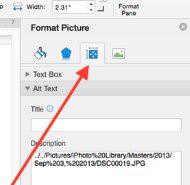 Word 2011 - 2013
- Right click on the image and select Format Picture...
- (2011, 2103) The Format Picture window will open.
- Select the Layout & Properties icon (see image)
- Enter Image description in the Description field (Not the Title field).
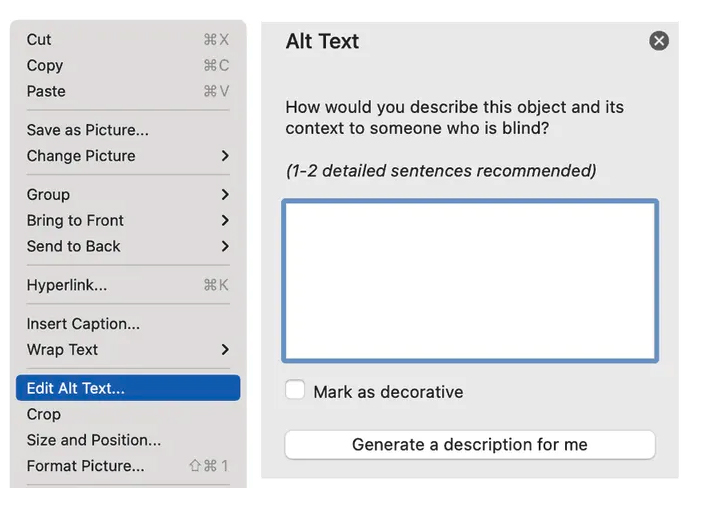
Word 2016
- Right click on the image and select Select “Edit Alt Text”.
- In the area “Alt text” you can now describe the image in one or two sentences
- Format a list as a list.
- Select the text to make into a list and click on the Home tab.
- In the Paragraph group, select the Numbering or Bullets icon.
- Use Numbering Lists if a sequential order is important to the list.
- Use Bullets Lists if all items are of equal value.
- Create a link that described its destination.
- Type out text that describes the destination of the link. (i.e. VolState).
- Select the text, right click and choose Hyperlink... from the menu.
- The Insert Hyperlink window will open. Enter a URL address in the Address field (Mac - Word 2011: Link to Fields).
- Click the OK button to save the link.
- Use the MathType plugin for MS Word to create math and science equations, formulas and notations. Contact IT to install MathType on your computer
- Do Not use Microsoft's equation editor.
- Note: MathType objects do Not need alt text.
- Indicate column headers for data tables.
Add table to document:
- Click on the Insert tab on the ribbon.
- Click on the Table button and select Insert Table.
- Select the number of Columns and Rows you want to start with and click OK.
Indicate column headers:
- Place the cursor in the top row of your data table.
- Click on the Layout tab under Table Tools (Mac: Table tab)
- In the Data group, click the Repeat Header Row button.
- Screen reader reads a table from left to right/top to bottom (never repeating a cell.
- Merged, nested, and split cells may change the reading order of a table.
- Construct your table in a way that accommodates a good reading order.
- To test the reading order, place your cursor in the first cell of a table. On the
keyboard, press the Tab key repeatedly to navigate through the table.
This will be the reading order that assists technologies will use.
- Use enough color contrast between the font and its background colors.
- Without sufficient color contrast, people who have low-vision or are color blind will not benefit from the information.
- Use the Color Contrast Analyzer tool (contact IT to install on. your computer).
Do NOT use color alone to convey meaning.
- Don't use color alone to make a distinction. If you categorize something by color alone, those who are color blind or blind will not be able to benefit from the information.
Label form fields and buttons.
- Use a form template to create a form
- Use real text labels from form fields and alternative text for buttons
Check the reading order of forms.
- Press the tab key repeatedly to check the order a screen reader would navigate through the form. If it doesn't land on the form fields in the correct order, you will need to edit the form.
- The tab order (or reading order) is important to those who are blind or physically disabled and rely on keyboard access.
Google Docs
- Properly format headings.
- Select the text that you want to make into a heading.
- Go to the Styles menu (or "Normal text") and choose the appropriate heading level from the Normal text drop down list.
- Use Heading in the correct order.
- Heading 1 should only be used ONCE per page. Heading 2, 3, etc. can be used multiple times. DO NOT skip heading levels!
- Add alternative (Alt) text to images.
- Select the image.
- From the Format menu choose Alt text.
- Type in description text in the Description field (Not the Title field).
- Click the OK button when done.
- Format a list as a list.
- Select the text that you want to make into a list, and do one of these:
- On the Format menu, choose Lists & select Numbered or Bulleted list.
- Go to the icon toolbar and choose the Numbered or Bulleted list icon.
- Create a link that described its destination.
- Type out the text that describes the destination of the link (i.e. VolState).
- Select the Insert Link icon (Ctrl/Cmd + K).
- The Link window will open. Type the URL of the webpage in the Link field (i.e. http://www.volstate.edu).
- Then click the Apply button to save the link.
- Math and science equations and formulas cannot be written accessibly in Google Docs.
- Indicate column headers for data tables.
Google Docs doesn't allow you to designate column or row headers, so keep your tables small so they are understandable without headers.
- Screen reader reads a table from left to right/top to bottom (never repeating a cell.
- Merged, nested, and split cells may change the reading order of a table.
- Construct your table in a way that accommodates a good reading order.
- To test the reading order, place your cursor in the first cell of a table. On the
keyboard, press the Tab key repeatedly to navigate through the table.
This will be the reading order that assists technologies will use.
- Use enough color contrast between the font and its background colors.
- Without sufficient color contrast, people who have low-vision or are color blind will not benefit from the information.
- Use the Color Contrast Analyzer tool (contact IT to install on. your computer)
Do NOT use color alone to convey meaning.
- Don't use color alone to make a distinction. If you categorize something by color alone, those who are color blind or blind will not be able to benefit from the information.
Label form fields and buttons
- Use Google Forms, NOT Google Docs.
- Press the tab key repeatedly to check the order a screen reader would navigate through the form. If it doesn't land on the form fields in the correct order, you will need to edit the form.
- The tab order (or reading order) is important to those who are blind or physically disabled and rely on keyboard access.
Contact Us
Related Links
- Accessibility at Southwest
- Web Accessibility Guidelines
- Accessible eLearn Pages
- PowerPoint & Google Slides
- Microsoft Word & Google Docs
- PDFs
- Video & Audio
- Complex Imagery
- Math & Science
- 3rd Party Tools
- Accessibility Checkers
- Accessibility Responsibility
- Software Purchases
- Accessibility Plan
- Accessibility Training Resources